
WINDOWS · LINUX · APPLE MAC
CCTV camera discovery, on site or across a route
Choose the discovery method that matches the network. SADPTools combines local camera discovery, known-IP access and explicit IPv4 scans in one Windows, Linux and Mac application.
Download SADPTools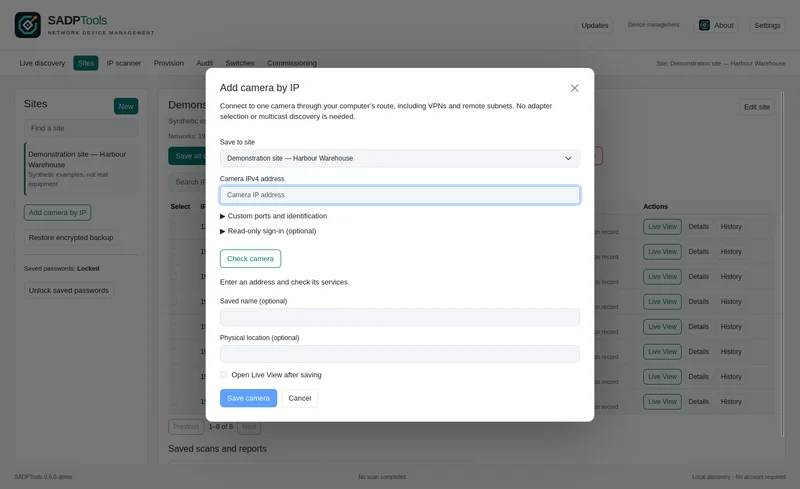
Start with where the camera is connected
| Your situation | Start here | What it needs |
|---|---|---|
| Hikvision camera on the same local network; IP unknown | SADP discovery | A suitable local adapter and multicast replies |
| Compatible camera from another manufacturer | ONVIF discovery | ONVIF discovery enabled and reachable on that network |
| You know the camera's IP, including on a routed network | Add a camera by IP | A working route and reachable camera services |
| You know the authorised subnet or address range | IPv4 network scanner | An explicit range, reachable services and bounded probes |
| You need local discovery on a remote network | Trusted SSH discovery host | A host on that network running the compatible sadptools CLI |
Find a camera when you do not know its IP address
Connect to the same camera VLAN or physical network and run local discovery. Select the relevant Ethernet or Wi-Fi adapter, or use all suitable adapters. SADPTools collects the information devices actually return, including IP address, model, MAC address, serial number and firmware where available. Unknown fields stay unknown.
Search Active Devices Protocol (SADP) can identify compatible Hikvision equipment even when its configured IP is outside your laptop's subnet, provided local Layer 2 discovery can reach it. ONVIF discovery provides another route for equipment that supports and enables that protocol. Neither method promises to detect every powered device.
Add a camera on a different subnet
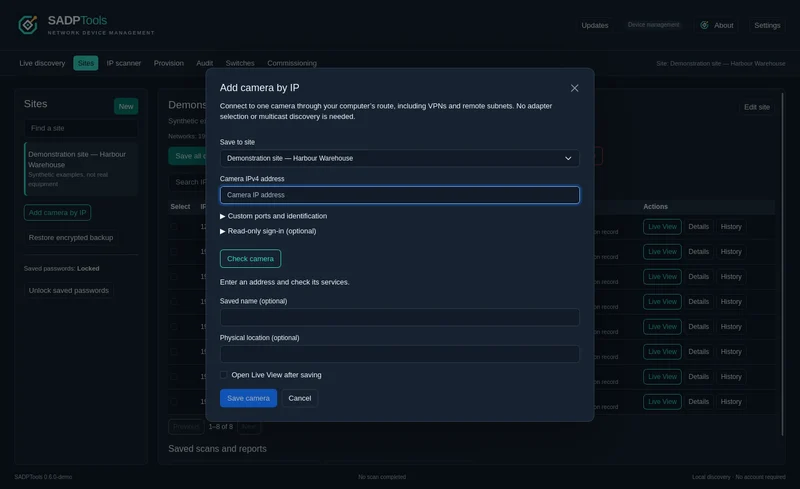
A working route is enough for many direct-IP operations; the camera does not have to share your laptop's subnet. Use Add a camera by IP and enter its address. SADPTools checks reachable services and detects an available HTTP or HTTPS web interface. You can then save the identified device to a site.
Routed web access does not transport SADP multicast. It also does not guarantee that activation or SADP network changes will work remotely. Treat service reachability and local discovery as separate checks.
Scan a known CCTV network
Use the IPv4 scanner for a specific network you are authorised to inspect. Calculate a range from a CIDR prefix or enter start and end addresses, then choose service probes, timeout and concurrency. Keep the scope narrow enough to investigate the results. Cancellation retains observations already collected.
A silent address is not proof that it is unused: ICMP or service probes may be blocked, a device may be asleep, or a camera may use an unexpected port. Confirm address availability before changing a camera's IP.
When local discovery must happen remotely
A trusted SSH host on the remote camera network can run the shared sadptools CLI and return discovery observations. Verify its host-key fingerprint and install the compatible CLI there first. The desktop retains the remote origin of the results; this does not turn remote observations into permission for local Layer 2 writes.
A short troubleshooting sequence
- Check power or PoE and the switch link, then confirm the laptop and camera VLANs.
- Review the selected adapter and the discovery log for socket, multicast or port-conflict errors.
- Check the firewall rules for the requested discovery or camera service; retain the protections your network requires.
- If the IP is known, try direct-IP access and inspect the detected HTTP/HTTPS interface. Browser access can succeed while discovery cannot.
- Confirm credentials, ONVIF availability and RTSP settings separately before diagnosing Live View.
- Save observations and export the relevant diagnostics for the next visit.
See discovery tools and screenshots, or follow the full installation and handover workflow.