WINDOWS INSTALLATION HELP
Why Windows says
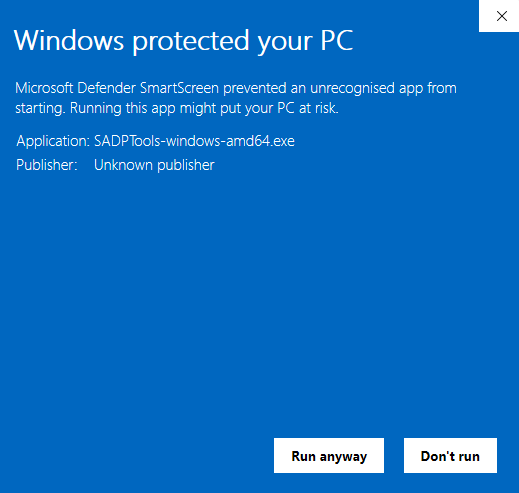
“Windows protected your PC”.
An unfamiliar app can trigger a SmartScreen warning. Here is what the message means, and how to make an informed choice.
Reputation and publisher identity
Microsoft Defender SmartScreen checks downloaded files using publisher and file reputation. SADPTools’ current Windows builds are unsigned, so Windows cannot show a verified publisher. A new version can also have little download history.
The warning alone does not establish whether a file is safe or malicious. Changing the download website does not remove the need for publisher trust.
Check before continuing
- Download from the SADPTools download section using the links on this site.
- Compare your file’s SHA-256 with the published checksums. In PowerShell, run
Get-FileHash -Algorithm SHA256 .\your-downloaded-file.exe. For the standalone package, check the ZIP before extracting it. A matching hash confirms file integrity; it does not establish a trusted publisher. - If you trust the download and want to proceed, select More info, then Run anyway, when Windows offers those options.
If your organisation blocks the app or the option is absent, contact your IT administrator. Keep Windows security protections enabled; do not change managed policies to force the app to run.
Installer or standalone?
The installer includes the display runtime and handles setup. The standalone ZIP needs an existing WebView2 runtime; extract it before opening SADPTools-windows-amd64.exe. Both packages contain the same desktop application.
Microsoft’s explanation of SmartScreen reputation.
Choose a Windows download