
WINDOWS · LINUX · APPLE MAC
How to find a camera on a different subnet
If your computer has a working route to a camera, SADPTools can check its IP directly even when the camera does not share your subnet. Local SADP multicast discovery is a separate connection path.
Download SADPTools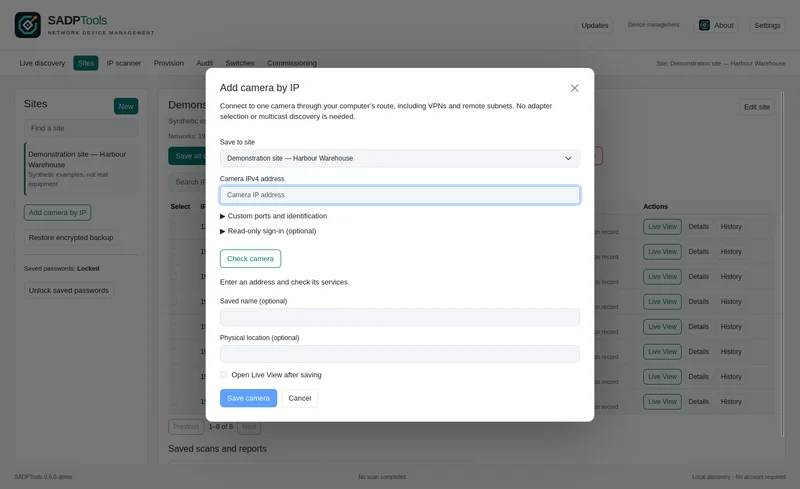
If you already know the camera's IP
- Confirm the route. Connect to the required LAN or VPN. If you can open the camera in a browser, note the address, HTTP/HTTPS protocol and any custom port. A browser using a proxy may have a different connection path from a direct camera client.
- Open Add camera by IP from Sites or the IP scanner. Choose the site that should receive the device when the dialog asks for a destination.
- Enter the camera's IPv4 address. Open Custom ports and identification if the camera needs a nonstandard port. Read-only sign-in lets you select a saved credential or supply a one-time login.
- Select Check camera. Read the returned identity and service information. If an HTTPS certificate is untrusted, compare its fingerprint with the camera before explicitly trusting the connection.
- Review the result and choose Save camera. Confirm that the returned device is the intended camera. Open its detected web interface or select Open Live View after saving where the required services and credentials are available.
Reachable web access does not imply reachable RTSP or ONVIF. A firewall may allow one service and block another. Use the actual camera ports and inspect the specific failing service before changing device settings.
A one-time login is cleared after checking and is not saved as a camera password. Assign a saved credential if you want the site to retain it. If identity cannot be verified, the app requires explicit confirmation before saving the address as unverified.
If you know the network but not the address
Use IP scanner for a network you are authorised to inspect. Choose the appropriate adapter, enter a CIDR or start/end range and select Calculate scope. Review Probe settings, then select Start scan and approve the exact range where requested. Public, routed or large scopes require explicit confirmation.
Review responding addresses and their service evidence. An address's details offer Add camera by IP so that you can identify equipment and save it to a site. Stop / Cancel retains results already collected. No response is inconclusive; it does not establish that the address is unassigned or that no camera exists there.
If you need SADP discovery on the remote network
Use a trusted SSH discovery host connected to that network. It needs the compatible sadptools CLI and the correct local network access. Verify the SSH host-key fingerprint, then run discovery through that host and review the returned inventory.
The remote host performs local discovery in the camera's broadcast domain. A routed laptop cannot obtain that behaviour simply by selecting a local adapter with a different IP. Remote observations retain their origin and do not automatically enable local SADP configuration writes.
Why a browser works while SADP finds nothing
HTTP and HTTPS normally use routed unicast connections. SADP discovery uses multicast on UDP port 37020 and normally remains on the local network. Correct IP routing can therefore provide browser access without forwarding discovery traffic.
A different case is an out-of-subnet camera on the same local Layer 2 network. SADP may discover that device even though its web page is not yet reachable. The SADP guide explains that distinction.
What to verify after adding the camera
Check the identity, detected web address, authentication and the service used for the next task. Saved inventory is not proof of current connectivity. Security-question recovery can use a routed web connection on supported firmware; activation and SADP network changes still need their appropriate discovery and write path.