
WINDOWS · LINUX · APPLE MAC
How to activate a Hikvision camera
For a compatible inactive Hikvision device, SADPTools can set the initial administrator password over the local network. Discover the device, confirm its identity, activate it once, then verify the result.
Download SADPTools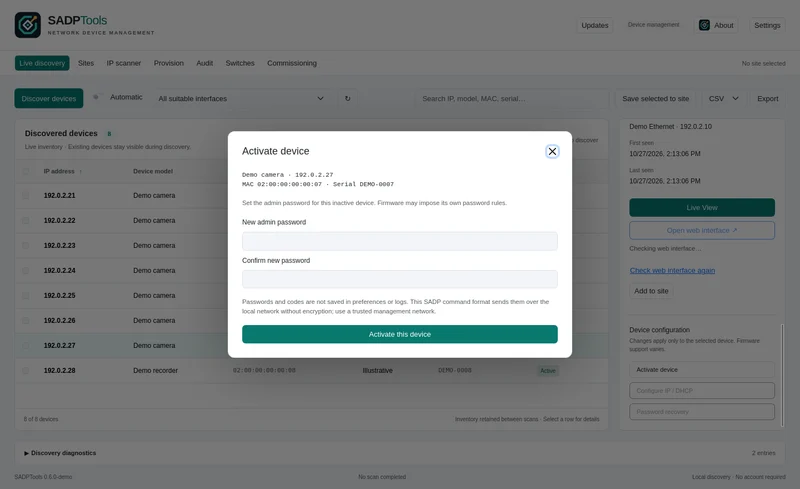
Before you begin
Install SADPTools for Windows, Linux or Apple Mac. Connect the computer to the camera's local network and confirm that the camera has power. Use equipment you own or are authorised to administer. Have the camera's label or your installation record available so that you can check its MAC address and serial number.
This workflow is for an inactive device whose firmware supports the implemented SADP activation method. It does not deactivate an existing camera or change the password of an already activated device. The same desktop controls are available on all three platforms; camera firmware determines compatibility.
Activate the selected camera
- Discover the device. In Live discovery, choose the adapter connected to the camera network, or scan all suitable adapters. Wait for the inventory to show the camera and its activation status.
- Confirm its identity. Select the camera and compare its MAC address and serial number with the physical device. An IP address alone is not enough to distinguish equipment that may have duplicate factory addresses.
- Finish or stop the scan. Stop an active discovery operation before starting a device write.
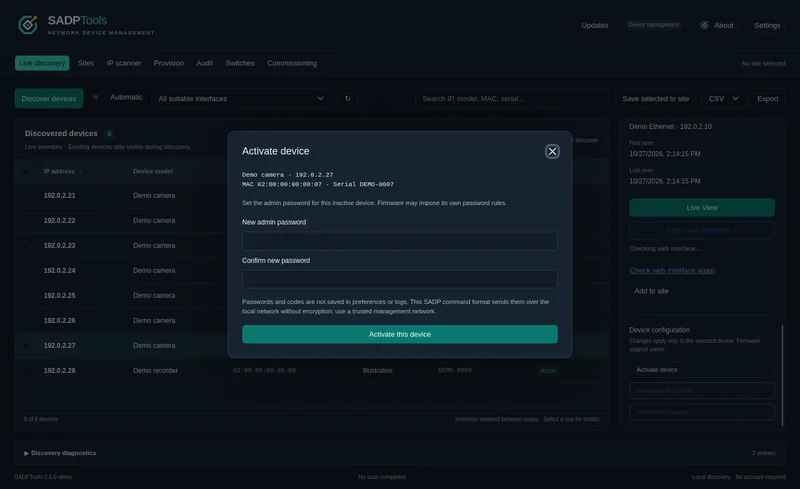
- Open Activate device. Review the identity at the top of the form. SADPTools automatically chooses an adapter that discovered this device. If several adapters saw it, Connection options provides an optional override; the request still uses one adapter.
- Set and confirm the new admin password. Use a unique password and retain it in your approved password store. The app checks its basic password rules; the camera can impose additional requirements.
- Select Activate this device once. Read the result before taking another action. SADPTools does not automatically retry activation.
- Choose Close and rediscover. Check the same device by MAC and serial. Once its address is reachable, test a login through its detected web interface using the new credentials.
Understand the result
An acknowledged result means a matching success reply was received. Independent rediscovery and a successful login provide stronger confirmation that the camera is ready. A rejection means the camera explicitly refused the operation; review the reported reason and its firmware requirements.
An unconfirmed result or timeout does not prove that activation failed. The camera may have changed state while its reply was lost. Rediscover and check before trying again. Stop waiting cancels waiting for a response; it cannot undo a request already delivered.
If the camera is missing or already active
Check the adapter, power, VLAN, firewall and discovery log. SADP is a local discovery protocol; a route to the camera's web page does not guarantee a SADP activation path. See the discovery troubleshooting guide.
For an already active camera, use the existing administrator credentials. If they are unknown, the supported Password recovery workflow may offer previously configured security questions or a support-provided code. Recovery availability depends on firmware and does not bypass camera security.
After activation
Use Configure IP / DHCP if the camera needs a different network address. An out-of-subnet device can be visible to local SADP discovery while its web interface is still unreachable. Save the camera into a site after checking its identity and current settings.