
WINDOWS · LINUX · APPLE MAC
How to configure cameras on Linux or Apple Mac
SADPTools provides a native desktop interface on Linux and Apple Mac for camera discovery, supported Hikvision activation and network changes, Live View and saved sites. Windows uses the same workflows.
Download SADPTools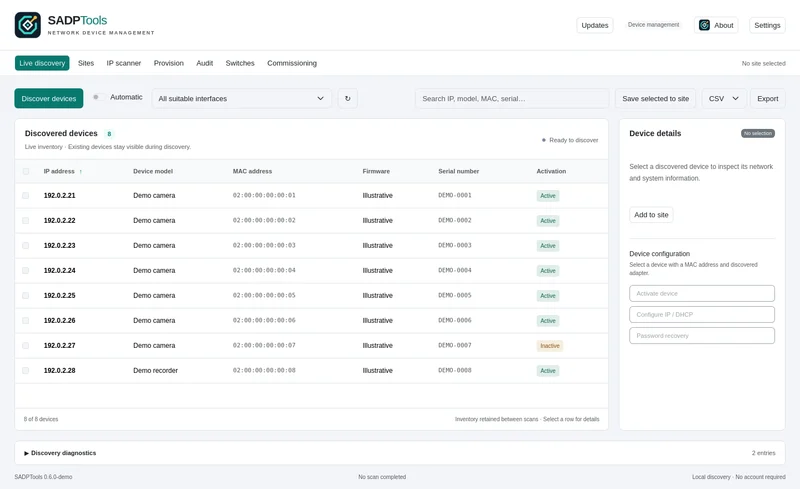
Install on Linux
Download the Linux AMD64 package for your distribution. DEB packages suit supported Ubuntu/Debian versions; RPM packages suit supported Fedora releases. A manual tar.gz package includes install.sh for a per-user installation. These are x86-64 packages, not Linux ARM builds.
In the directory containing the downloaded file, install the DEB with sudo apt install ./your-downloaded-file.deb, or the RPM with sudo dnf install ./your-downloaded-file.rpm. Substitute the actual filename. The package manager resolves declared dependencies. For the manual package, extract it, enter its folder and run ./install.sh; the script checks dependencies before installing.
The desktop needs GTK4 and WebKitGTK 6.0 on a supported distribution. Older distributions may lack the required versions. Open SADPTools from the GNOME, KDE or other desktop application menu as your normal user. The desktop requires a graphical session; the separate sadptools CLI can run in a terminal or over SSH.
Install on Apple Mac
Download the universal Mac DMG or ZIP for Apple Silicon and Intel, targeting macOS 12 or later. Open the DMG and drag SADPTools to Applications, or extract the ZIP and move SADPTools.app there. Launch it from Applications.
Current Mac packages are not Developer ID signed or notarised. Read the Mac installation and Gatekeeper guide before deciding whether to open them. Allow local network access when macOS asks. Mac runtime, camera and codec behaviour still require testing on physical Mac hardware; a successful build is not proof of every workflow on every Mac.
Discover, select and configure
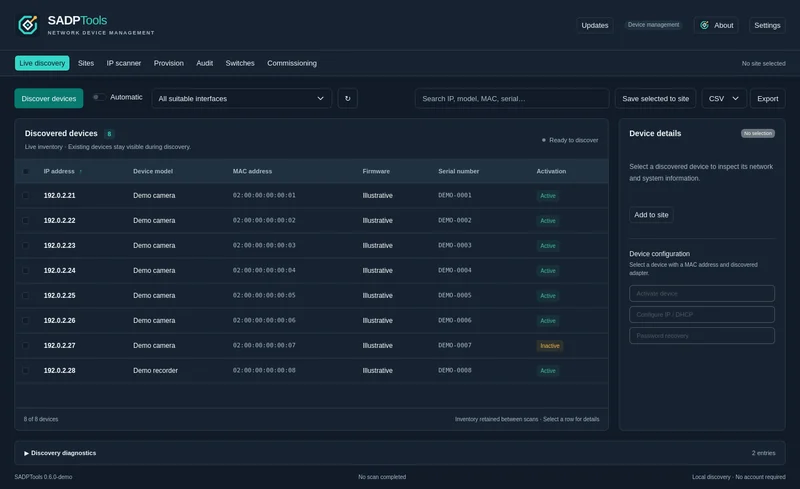
- Connect to the camera network. Choose the relevant adapter in Live discovery, or scan all suitable adapters.
- Start discovery and inspect the results. Match MAC addresses and serial numbers against the equipment being installed. Use the diagnostic log when a scan is empty.
- Stop the scan before a write. Choose Activate device for a compatible inactive camera, or Configure IP / DHCP for a compatible activated device with known admin credentials.
- Review and apply one action. Follow the activation or network configuration guide. An unconfirmed result requires investigation before another write.
- Rediscover and verify. Open the detected web interface when reachable, then save the camera to a site. Use direct-IP access for cameras reachable through a router or VPN.
Live View and saved passwords
Live View opens in a separate window and starts automatically after you choose it. Try a supported H.264 stream first; codec support and the camera's stream settings can affect playback, especially H.265/HEVC on Mac. Camera and account capabilities determine the available image, focus and PTZ controls.
Linux and Mac protect saved credentials with a local passphrase vault. Mac Keychain automatic unlock is not implemented. Windows uses its existing account protection. For portability, use Export site and Import site rather than copying account-specific credential files.
Update without losing site data
Make an encrypted site backup, close the app and its Live View windows, then install the current Linux package or replace the Mac app in Applications. Mac updates are manual after the update check. Site data and preferences live outside the app bundle.